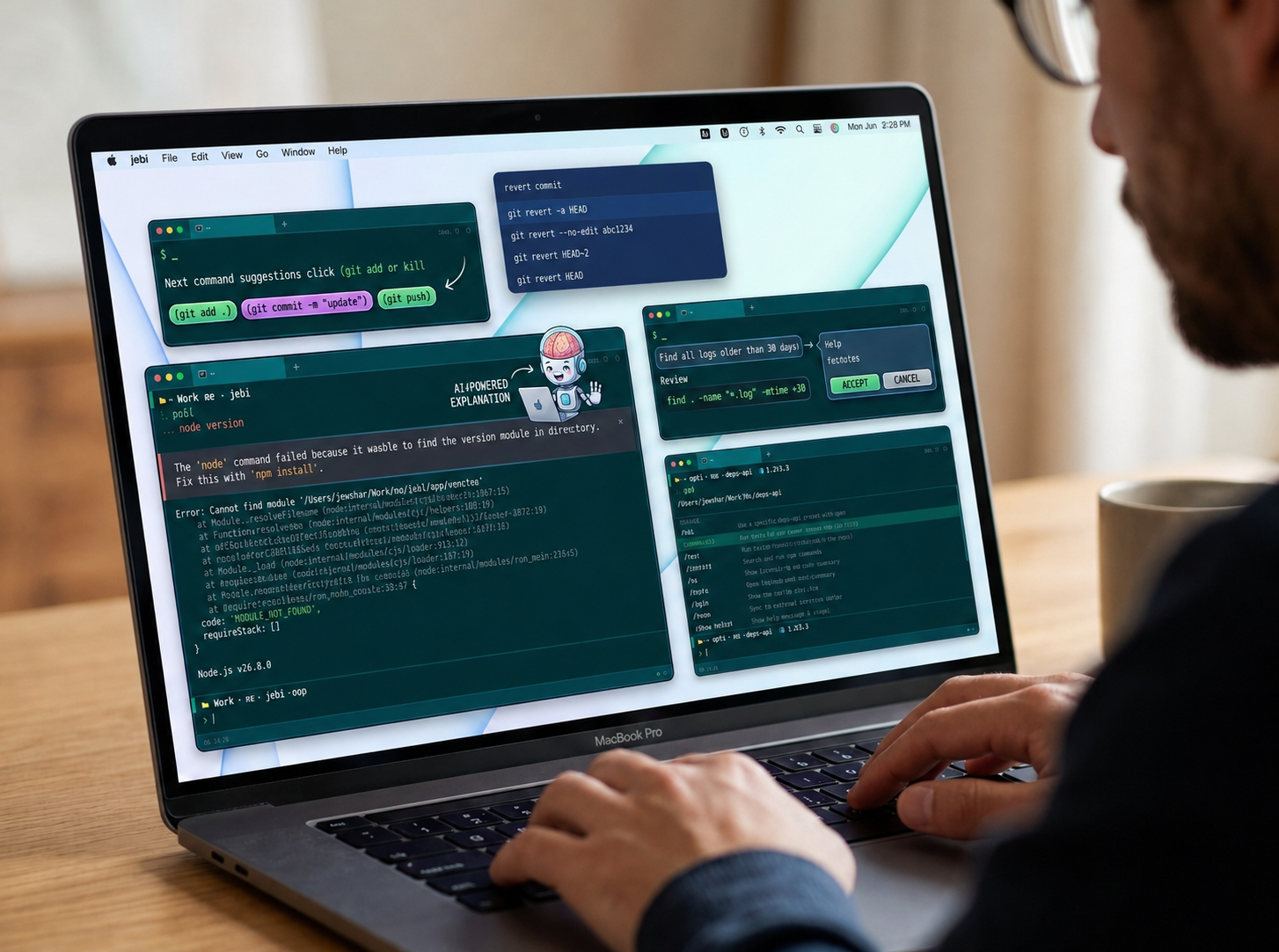
This post assumes you’ve used a terminal before and you know what a PTY, a shell history file, and an LLM inference server are. If you haven’t tried a terminal with AI built into the process itself, and not bolted on as a separate app, that’s the gap I’m writing about.
TL;DR: jebi is an Electron based terminal for Apple Silicon Macs, with a Go backend and a local LLM (via llama-server, no API key, no internet call) wired directly into the shell session. Failed commands get explained in two sentences instead of sending you to a Stack Overflow tab, every prompt gets three AI suggested next commands, you can type plain English and get back a real shell command, a destructive command guard blocks things like rm -rf and git push --force with a confirm dialog regardless of who typed them, slash commands skip the shell entirely for common actions, and history search understands what you meant instead of just what you typed. Nothing you type or run leaves your laptop, not a single byte.
The problem with terminal + AI right now
The default workflow for “AI in the terminal” today is this: open a second window, run a command, copy the error, paste it into ChatGPT or Claude, read the explanation, alt tab back, retype the fix. That’s four context switches just for a command not found. Tools like Warp and Fig did improve the terminal experience, but the AI layer in most of them is still a cloud API call. Your .env contents, your internal repo names, your infra commands, all of it is leaving your machine as tokens to some server you don’t control.
I built jebi with a narrower bet. Keep everything, the model, the inference, the history, on the machine, and make AI a first class part of the session loop (command, output, explanation, suggestion) instead of a chat window sitting next to your terminal.
AI error explanations: two sentences, not a rabbit hole
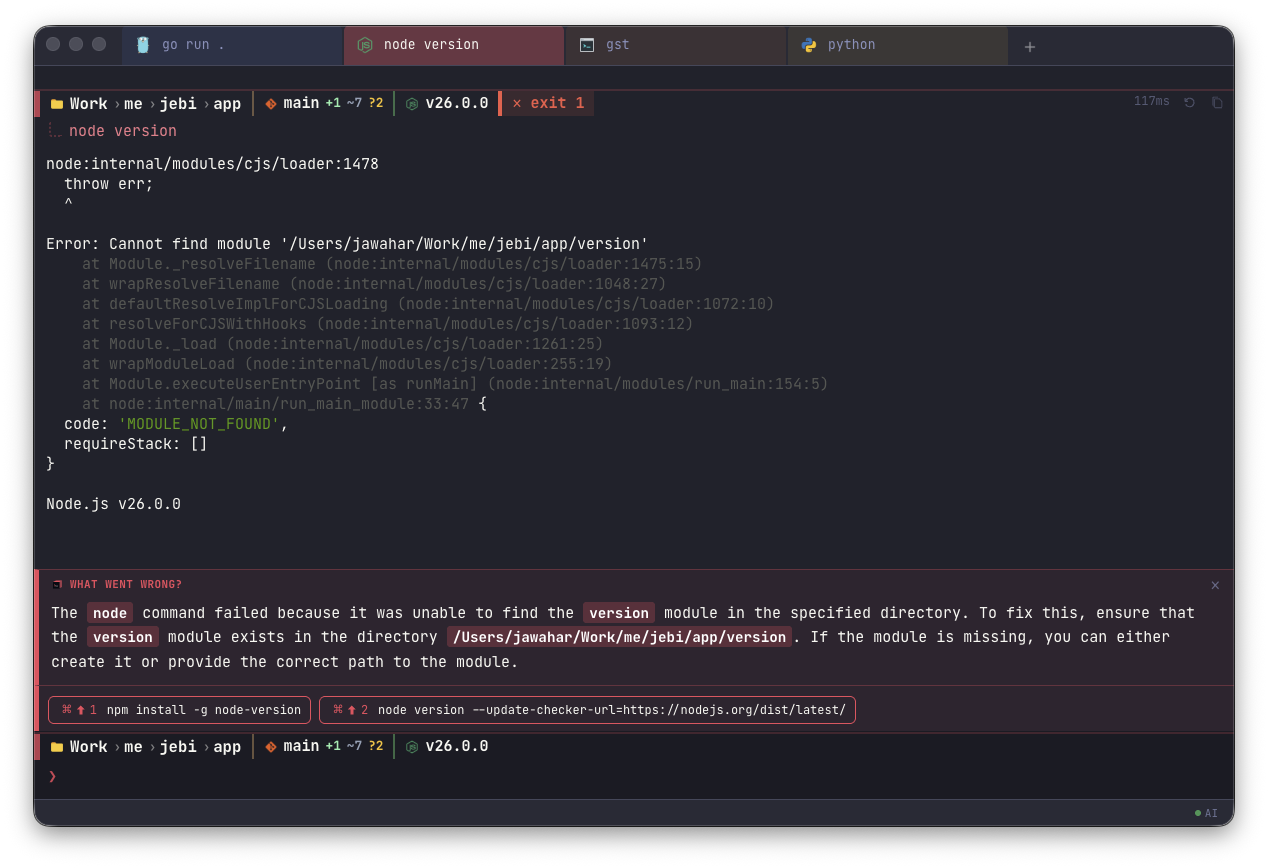
When a command exits non zero (excluding the boring cases, 127 for “not found” and 130 for Ctrl+C), jebi automatically streams an explanation into a banner right above the failed output. No /ask, no prompt needed, it just appears, token by token.
The context sent to the model isn’t just the failing command in isolation. It’s the failing command plus your last few history entries, with the failure explicitly flagged ([FAILED - THIS IS THE COMMAND TO EXPLAIN]), so the model has the same situational context you do, what you were doing right before this broke. The prompt mandates a tight format, exactly two sentences, cause first then a concrete fix wrapped in backticks, because a five paragraph LLM ramble defeats the whole purpose of inline error handling. You want the fix, not an essay.
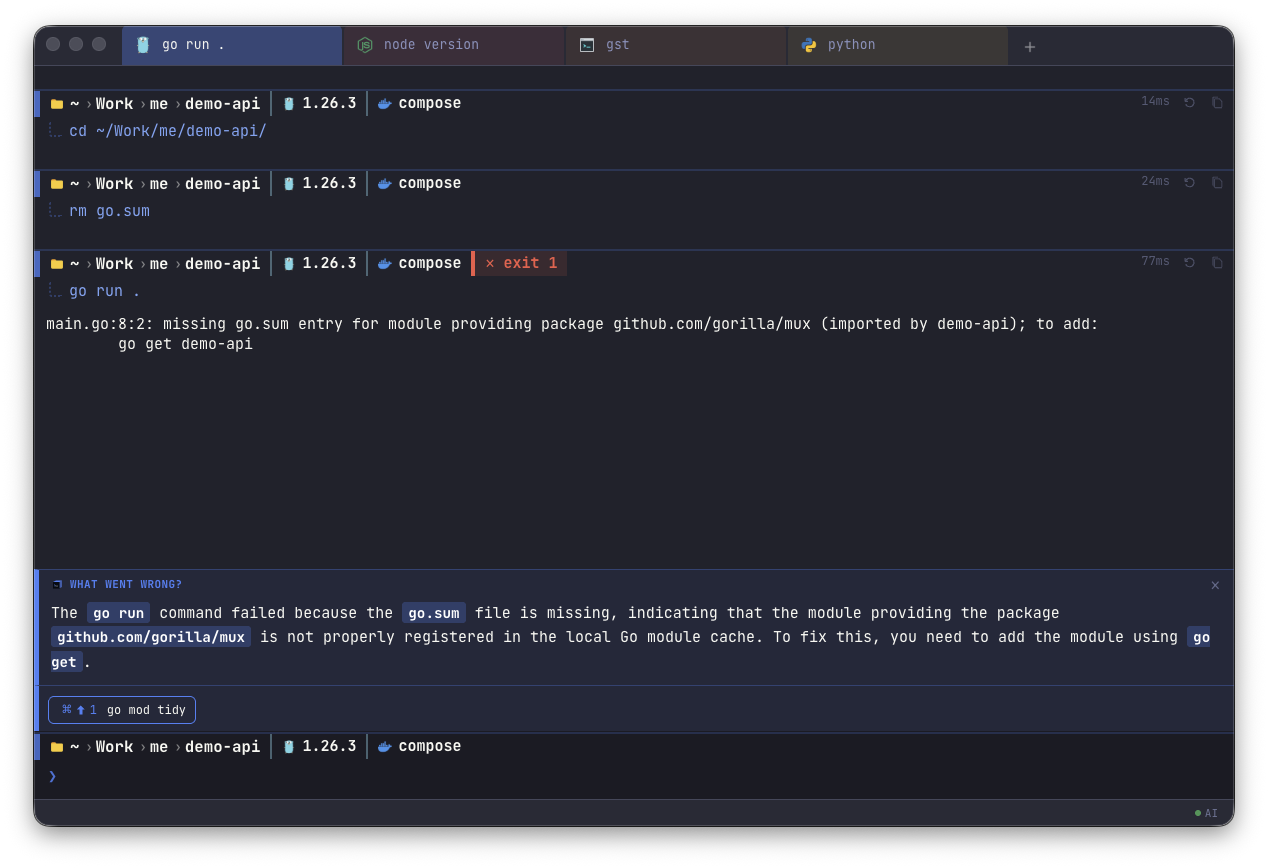
Same thing on a Go project with a missing go.sum entry, the banner names the exact cause and the exact command to run, not a paragraph of hedging:
Next command suggestions: three chips, one keystroke
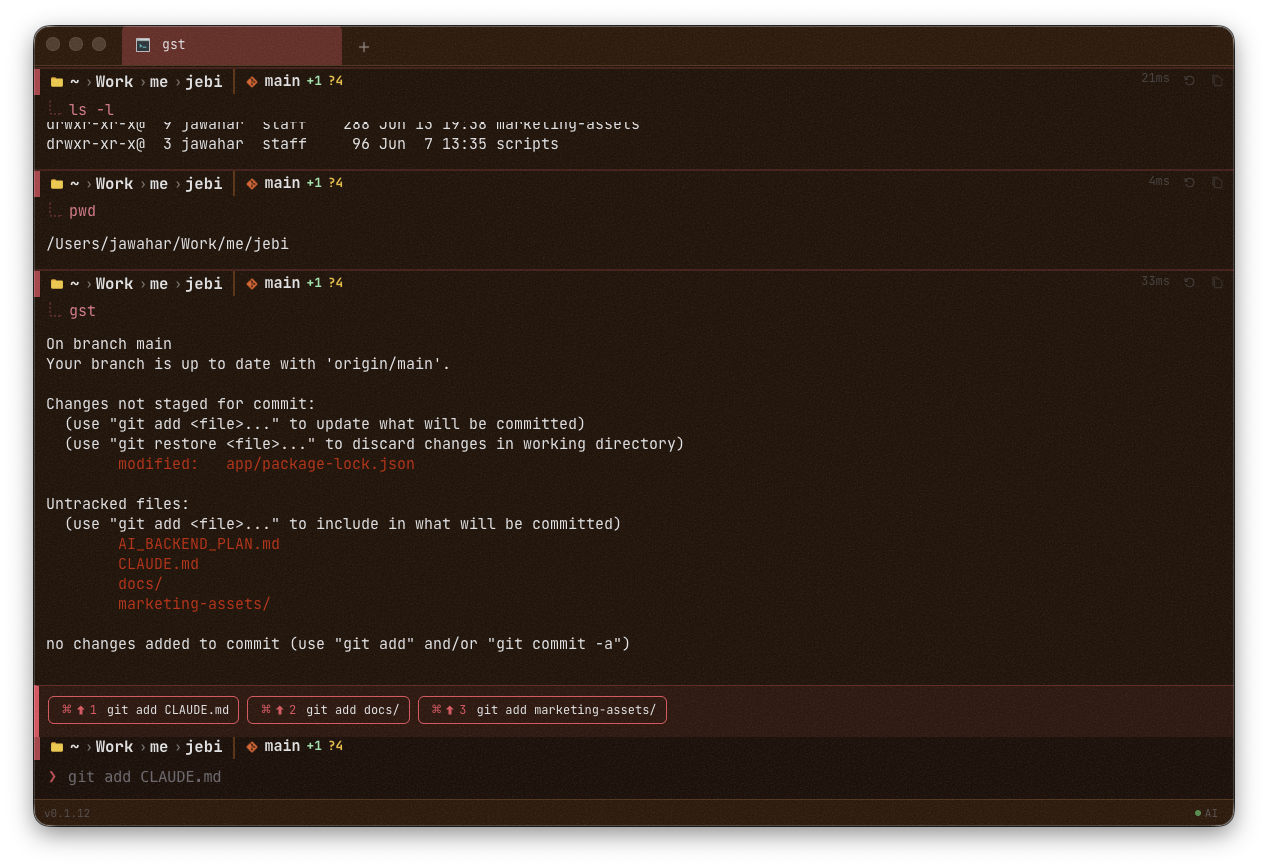
After a command finishes, whether it failed or not, jebi’s suggestion engine proposes up to three follow up commands as clickable chips, bound to ⌘⌥1, ⌘⌥2, ⌘⌥3. The prompt is built from recent history plus a directory listing, so the suggestions are grounded in what’s actually in your working directory and not generic shell trivia. There’s one explicit rule baked into the prompt: never suggest the exact command that just failed. The model has to propose something genuinely different, not just parrot the failure back at you.
These two features, explanation and suggestions, fire off the same trigger in parallel, which is why the failure banner and the next step chips tend to show up together. You get “here’s what broke” and “here’s what to try” in the same beat, without asking for either one. Run git status and jebi already has the git add chips waiting for you:
Natural language to command, without auto running anything
This is the one people ask about first when I demo jebi. Press ⌘⇧. and the input bar switches into NL mode, shown with an accent colored left border and a different placeholder. Type a plain English sentence, “find all node_modules folders bigger than 100MB,” press enter, and jebi sends that sentence plus your current working directory to the local model.
The model’s job here is genuinely to generate a command, not to search history like the global search feature does. The system prompt tells it to convert natural language into an ordered list of shell commands, and if what you typed isn’t actually a command request, it’s told to return NOT_A_COMMAND instead of guessing. The result shows up in a small panel for you to review, it does not run automatically. Only when you explicitly accept it does jebi write the generated command into the input bar, where you can still edit it before hitting enter yourself. Escape gets you out of NL mode at any point.
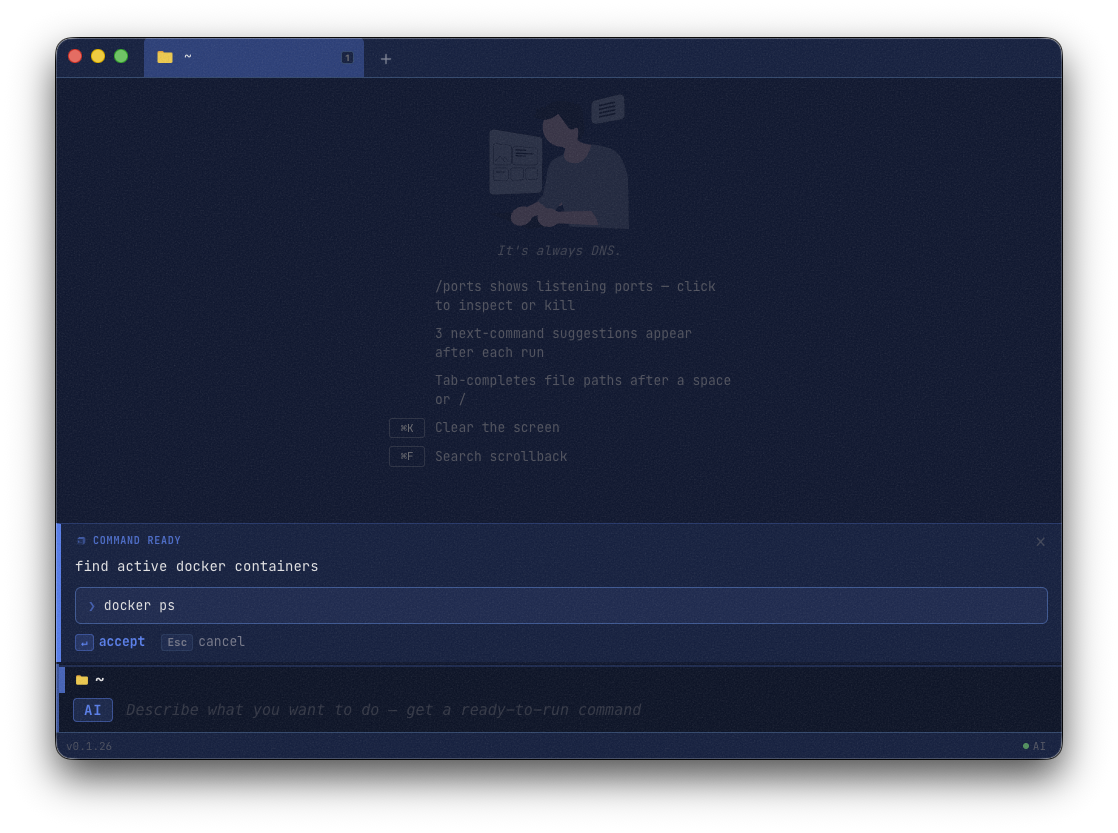
That review step is deliberate. A model that writes shell commands for you and executes them without a human in the loop is a liability, especially once you start asking it things involving rm or docker system prune. jebi shows you the command it thinks you want, and you’re the one who decides to run it.
Destructive command guard, and it isn’t only for AI generated commands
This one isn’t tied to the model at all, and that’s on purpose. Before any command runs, whether you typed it yourself or accepted it from NL mode, jebi checks it against a pattern list, rm -rf, git push --force, git reset --hard, docker system prune -f, terraform destroy, a raw DROP or DELETE without a WHERE, dd writing to /dev/, and a few dozen more. If something matches, execution is blocked and a confirm dialog comes up, “Run anyway” or “Cancel,” with a checkbox to stop asking for that particular pattern again.
The local model only gets involved after the pattern already matched, and only to turn a regex label into a one line, human readable explanation of what’s about to happen. If the model isn’t available for some reason, jebi falls back to a static message for that pattern, so the guard never depends on the LLM actually working. This is the one place in jebi where I didn’t want “the AI decided it’s fine” to be the thing standing between you and a wiped disk.
Slash commands: skip the shell for things that aren’t shell commands
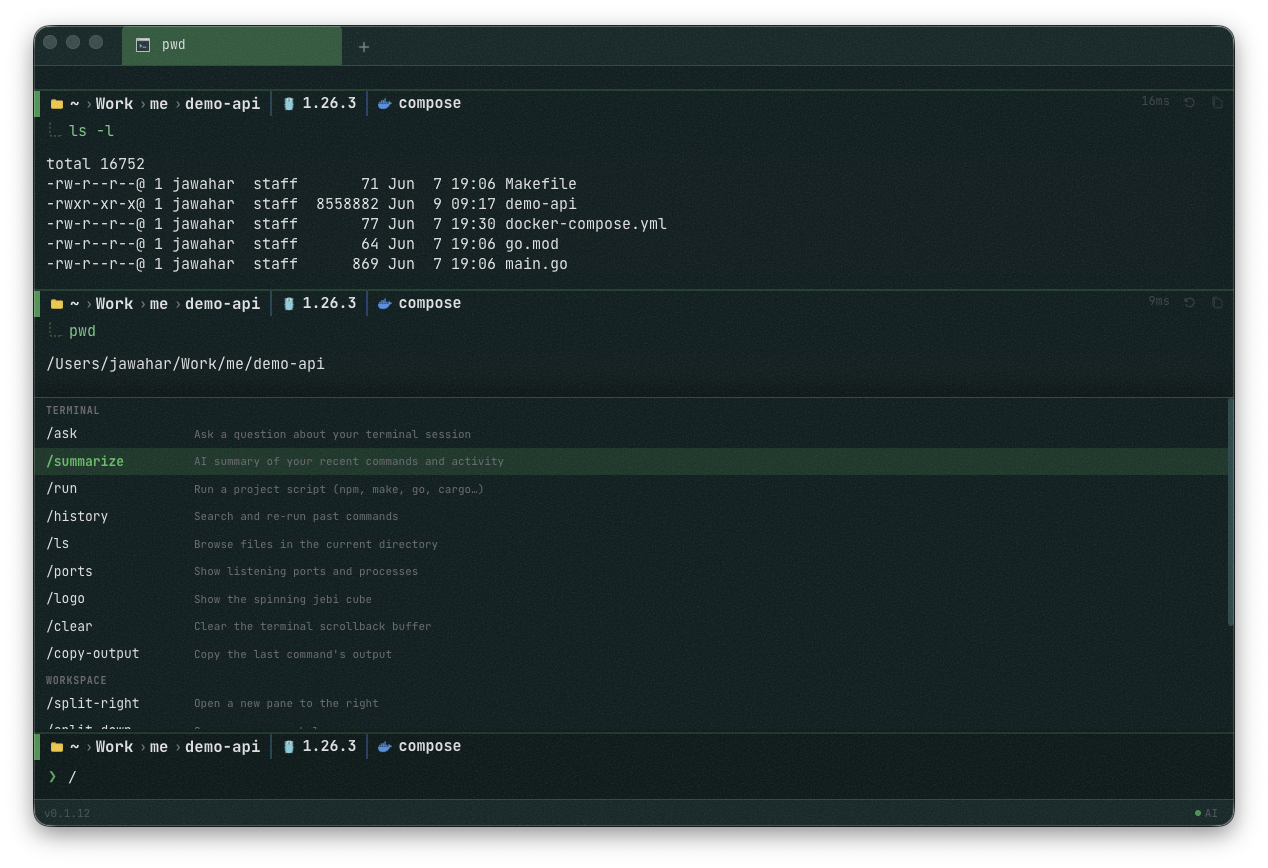
Typing /ls, /ports, /ask, or a custom command you defined never touches the PTY. The input bar intercepts anything starting with / before it’s submitted, resolves it against a client side registry, and runs it in process. That line never reaches the shell, and it never pollutes your real command history.
This matters more than it sounds like on paper. /ports shouldn’t leave a lsof -iTCP -sTCP:LISTEN fossil sitting in your .zsh_history that you have to scroll past a week later. And since the registry is just a list of {id, title, run(ctx)} objects merged with whatever you add yourself in ~/.config/jebi/commands.json, you can turn your own muscle memory aliases into palette entries with proper descriptions and sections, without touching your shell rc files at all.
// ~/.config/jebi/commands.json
[
  {
    "id": "deploy-staging",
    "title": "Deploy to staging",
    "description": "Build and push the staging image",
    "command": "docker build -t app:staging . && ./scripts/push.sh staging"
  }
]
Type /deploy-staging, hit enter, done. No new keybinding to memorize, no shell function to remember you even wrote.
Global search that understands intent, not just substrings
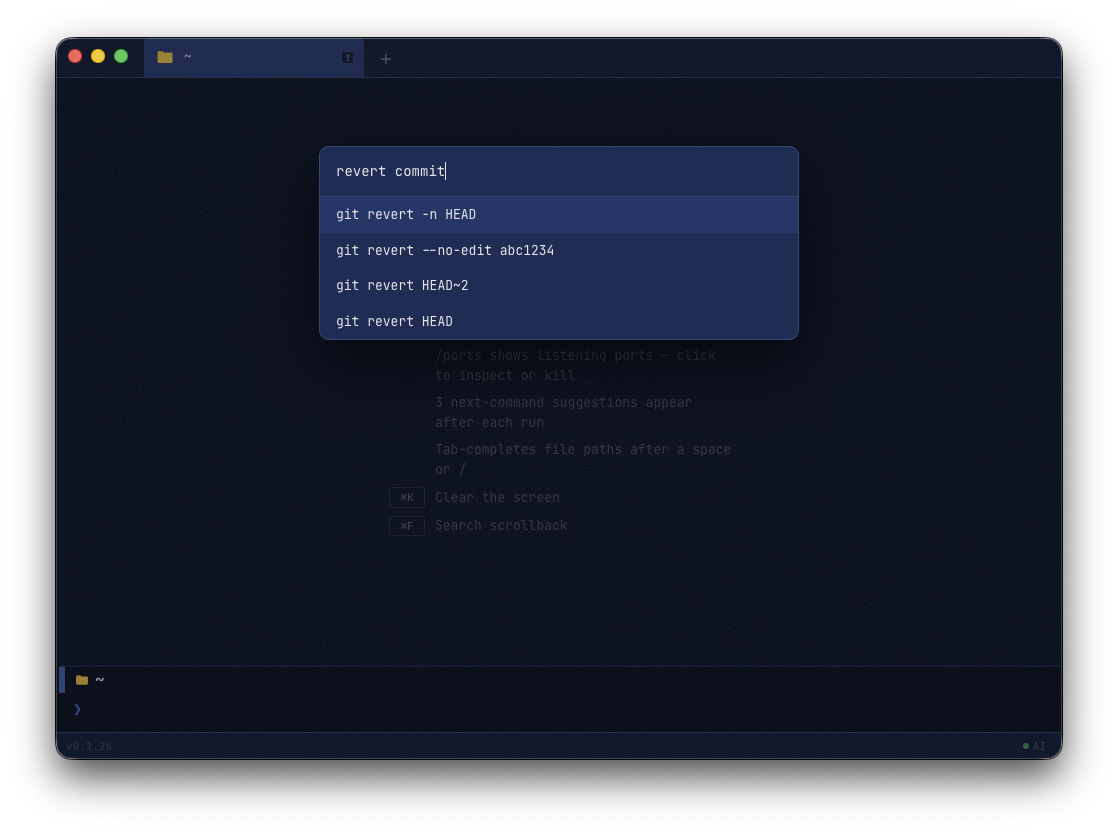
This is the feature that changes how you use history day to day, and it’s a different problem from NL mode above, it searches what you’ve already run instead of generating something new. Most terminals give you Ctrl+R and a fuzzy substring match, which is only useful if you remember a fragment of the exact string you typed. jebi’s global search sends your query plus your actual history entries to the local model, and asks it to pick which of your real commands match what you meant.
The important design decision here is that the model isn’t allowed to invent a command. The system prompt is explicit about it: “Only choose from the exact commands listed below… Output ONLY a JSON array of strings, each exactly matching one of the listed commands.” The Go backend then intersects whatever the model returns against the actual candidate set, and anything hallucinated gets silently dropped before it ever reaches the UI. So when you search for “that thing where I killed the process on port 3000,” you get back the literal kill -9 $(lsof -ti:3000) you ran three weeks ago, not a plausible looking command the model made up on the spot.
This is a search and rerank problem, not a generation problem, unlike NL mode. That constraint is exactly what makes it trustworthy enough to actually run the result instead of just reading it and second guessing it.
The part that actually matters: none of this leaves your machine
Every feature above runs against a llama-server process jebi spawns and talks to exclusively over http://127.0.0.1:<port>, a locally bound port picked at startup, model file resolved from a bundled path or your jebi settings. There is no external API client anywhere in the provider code. No API key to configure, no network egress, no usage based bill, and no data handling agreement to read through before you accidentally paste a production credential into an error message. If you’re offline on a flight, error explanations and suggestions still work exactly the same.
Trade offs, because a post like this isn’t worth trusting without them
- Apple Silicon only, macOS 14+. No Intel Mac support, no Linux, no Windows. If you’re not on M series hardware, this isn’t for you yet.
- Local models are smaller than GPT-4 class cloud models. The explanations are tuned to be short and directive specifically because a small local model reasoning at length is where quality starts to drop. The two sentence constraint is partly a UX choice and partly a model capability choice.
- RAM and disk overhead. Running an inference server alongside your normal terminal workload means a resident model sitting in memory. On a base 8GB Mac this is a real cost, not a footnote.
- History search is bounded by what you’ve actually run. It reranks real history, it doesn’t generate commands you’ve never used before. That’s the right trade for trust, but it does mean it can’t help you with something you’ve genuinely never run before.
Try it
brew tap jebi-sh/tap
brew install --cask jebi
Apple Silicon, macOS 14 Sonoma or later.